
It is now possible to enter your EYE-TA scores on a per-child basis instead of a per-item basis. This method should help save time if you only need to enter data for a small number of children (ex. if a new child moves into the class after you've entered data for all the others). This new data entry method has been integrated into the "Progress Overview" page, so you do not need to do anything different to be able to access it. Just confirm your class list as usual and you will see the new option on the "Progress Overview" page as shown below.
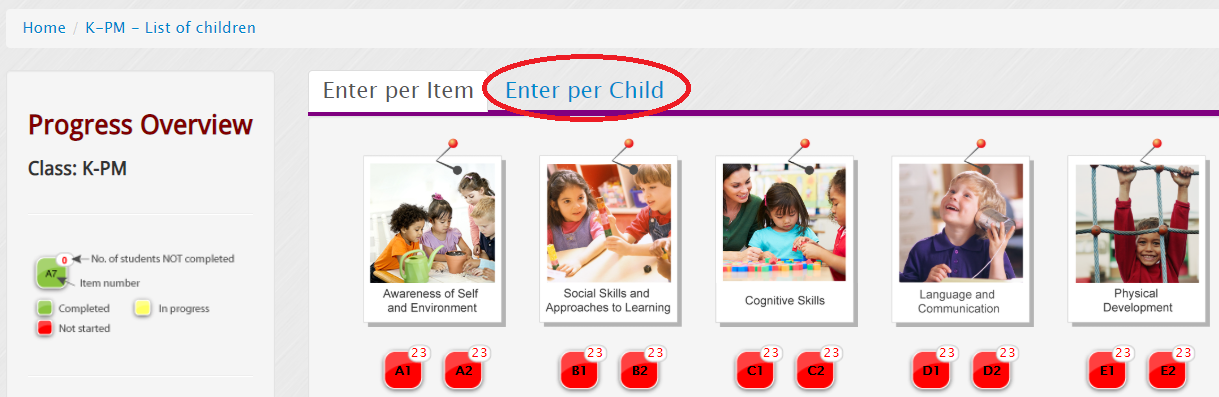
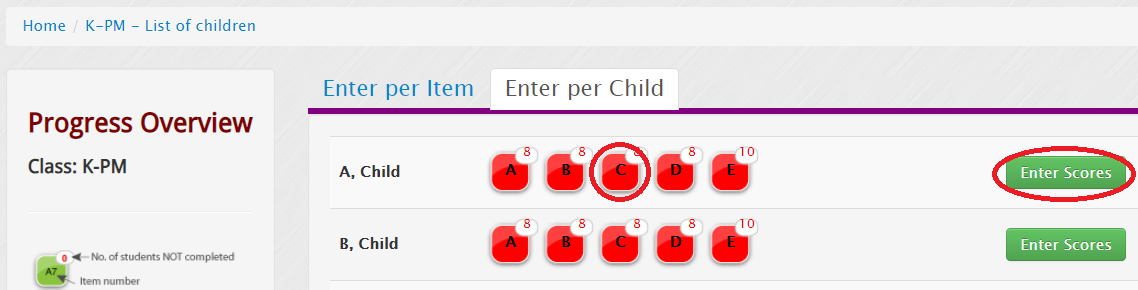
Selecting the "Enter per Child" tab will take you to a list of all the children in your class. From here, you can click "Enter Scores" for the child you'd like to input data for or, if you'd like to enter scores for a specific domain, you can click on the domain icon instead.
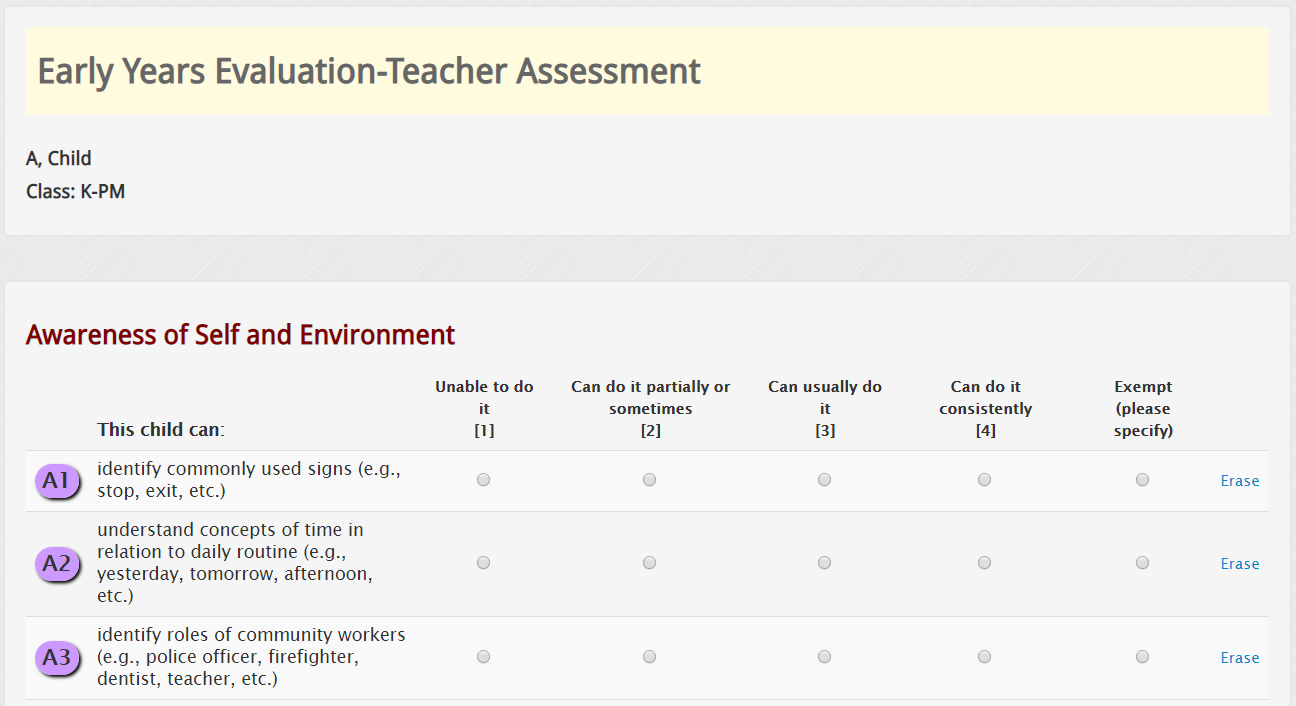
Score entry is still on the exact same four-point scale as always. The only difference in data entry is that all 42 TA items are listed on the same page, so that you can run through the whole assessment without needing to load 42 separate pages; something that can be frustrating when you only have a single child to enter data for. You can also still use your keyboard's number keys (1-4) to quickly enter scores without having to use a mouse to click each one.
Once you are finished entering scores, make sure to head to the bottom of the page to save your results. You do not have to enter all scores at the same time, but make sure you save the scores you do enter before closing the window.

When you return to enter more data later, the app will let you know which domains still need scores entered.
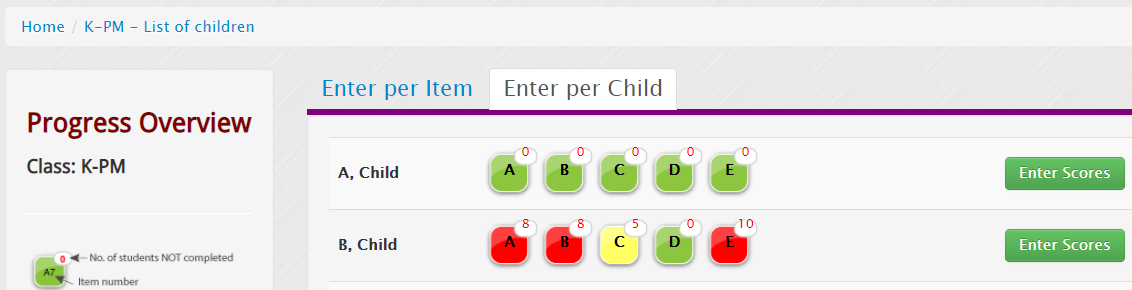
 This icon indicates that there have been no scores entered in this domain for the child
 This icon indicates that some scores have been entered for this domain, but there are still 5 to go
 This icon indicates that all scores have been entered for this domain for the child
Once all scores have been entered for all children on your assessment list the "Generate Reports" button will appear on the "Progress Overview" page and you can run and view your child/class reports as usual.
Please Note: If any items are left blank the "Generate Reports" button will not be displayed. If no data was collected for an item please mark it as "Exempt" and leave a brief note as to why.

We hope this feature will help to make data entry for small classes or children who move mid-assessment a more streamlined process. The traditional data entry method is still our recommendation for larger classes, but you can also switch back and forth between methods if you wish to test out per-child entry. The Teacher Checklist is still formatted for per-item score entry, but it will update with any scores entered per-child as well.