
Users’ accounts are automatically ‘enabled’ once they have been added and sent their login instructions. You may wish to temporarily disable a user’s account (as opposed to removing them altogether). This may happen, for example, if a user goes on a temporary leave such as parental leave or extended sick leave. Disabling a user’s account removes their ability to access the specific class, school, or jurisdiction that they were assigned to within the EYE application. You can re-enable an account later as necessary.
Some users may have multiple access to different schools or classrooms. Therefore you may need to disable a user's account in multiple spots, or in one school/class and not another, depending on the situation.
1. From the User Management landing page, you will see an Enable/Disable column.
2. To deactivate an account click the arrow icon from green  to red
  .
.
3. To reactivate an account click the arrow icon from red to green .

- The Green arrow - means that the account is active. The user can access the particular class/school/jurisdiction you are viewing.
- The Red arrow - means the account is inactive. The user cannot access the particular class/school/jurisdiction you are viewing.
Delete a User:
1. From the User Management landing page, disable the user’s account by changing the arrow to red.
2. Once disabled, click on the trash can icon under the Delete section.

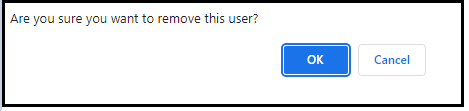
3. A confirmation message is displayed. Click OK to delete.
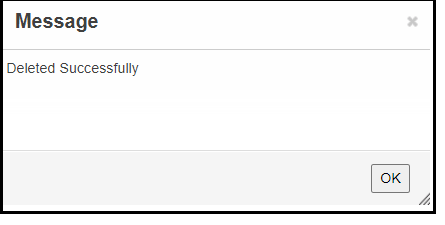
4. Once the user has been successfully removed, a confirmation is displayed. Click OK to exit.
Click to return to the Session Administrator Roles article