
As soon as you have successfully login into your EYE account, there are two ways of seeing your list of children:
Option 1:
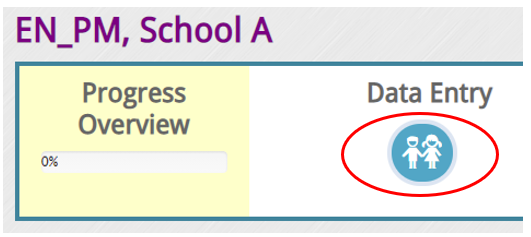
From your landing page, under Data Entry click on the Manage Child Data and Enter Scores icon depicting two children:
Option 2:
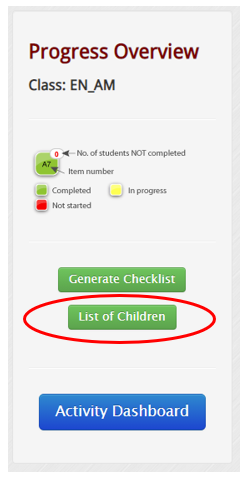
From the Progress Overview page, click on the List of Children button on the far left-hand side:
Whichever way you choose you will see your full class list showing their student information data that includes the following information:


- Status - You can use this tool to filter your view by the current status of the child:
-
- Not Started [Start]
- Not Assessed [Continue]
- Assessed completed [Get Report]
- Exempt [Moved] or [Not Assessed]
-
- Student ID - This is the unique ID as provided by the district/school (Please note that this field may be optional or mandatory, depending on your district).
- Last Name
- First Name
- Date of Birth
- Gender
- Date of Evaluation - the day the child was assessed/evaluated
- Moved /Not Assessed - this may be selected if the child could not be assessed. This may occur if the child has "Moved" to another school/province or is "Not Assessed" due to other factors. Evaluators must put a "Note" on the box for the reason for not being able to evaluate the child.
- Notes - This is mainly used for the above mention, to record information for when a student is marked as Not Assessed.