
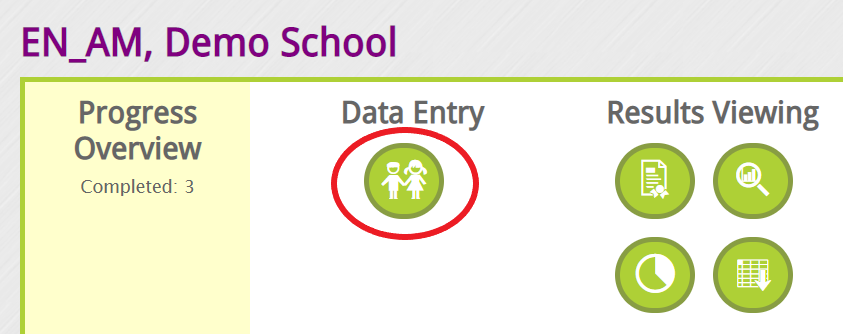
Once logged in with your EYE account you should be able to access your student list by clicking on the Manage Child Data and Enter Scores icon depicting two children.
With this view, you will see your full student list and the student's identifiable information. This includes the following information.

- Status - You can use this tool to filter your view by the current status of the child:
-
- Not Started [Start]
- Not Assessed [Continue]
- Assessed completed [Get Report]
- Exempt [Moved] or [Not Assessed]
-
- Last Name
- First Name
- Date of birth
- Gender
- Date of Evaluation - the day the child was assessed/evaluated
- Moved /Not Assessed - this may be selected if the child could not be assessed. This may occur if the child has "Moved" to another school/province or is "Not Assessed" due to other factors. Evaluators must put a "Note" on the box for the reason for not being able to evaluate the child.
- Notes - This is mainly used for the above mention, to record information for when a student is marked as Not Assessed.